On this page
YouTube is the one site where a downloader has the most choice. The same video can sit on YouTube's servers in eight or nine sizes, from a blurry 144p up to 4K. Picking the right one saves you space, data and waiting time.
This guide covers every device, then the two things that confuse people most: why HD takes longer, and what the messages mean when a video won't save.
First, what YouTube itself offers
Before using any downloader, know the official routes:
- YouTube Premium lets you save videos inside the YouTube app for offline viewing. You can't move them out of the app, but for watching on a flight it is the simplest option.
- Your own uploads can be downloaded from YouTube Studio. Open Content, find the video, open the three dot menu and choose Download.
For everything else, YouTube's terms ask for the owner's permission. The legal lesson explains what that means in practice, and when a video is free to save, such as one released under Creative Commons.
On a computer
- Open the video on youtube.com and copy the address from the address bar. You can also right click the video and choose Copy video URL.
- Go to the YouTube downloader, paste the link and press Download.
- Pick a quality from the list. The file saves to your normal downloads folder as an MP4 or WebM.
On iPhone
- In the YouTube app, tap Share under the video, then Copy link.
- Open Safari and go to the YouTube downloader.
- Tap the box, tap Paste, then tap Download.
- Choose a quality, then tap Download when Safari asks.
The video lands in the Files app, in Downloads. Open it, tap the share icon and choose Save Video to put it in Photos.
On Android
- In the YouTube app, tap Share, then Copy link.
- Open Chrome, go to the YouTube downloader and paste the link.
- Tap Download and choose a quality.
The file goes to your Download folder, and your gallery app picks it up within a few seconds.
Picking a quality
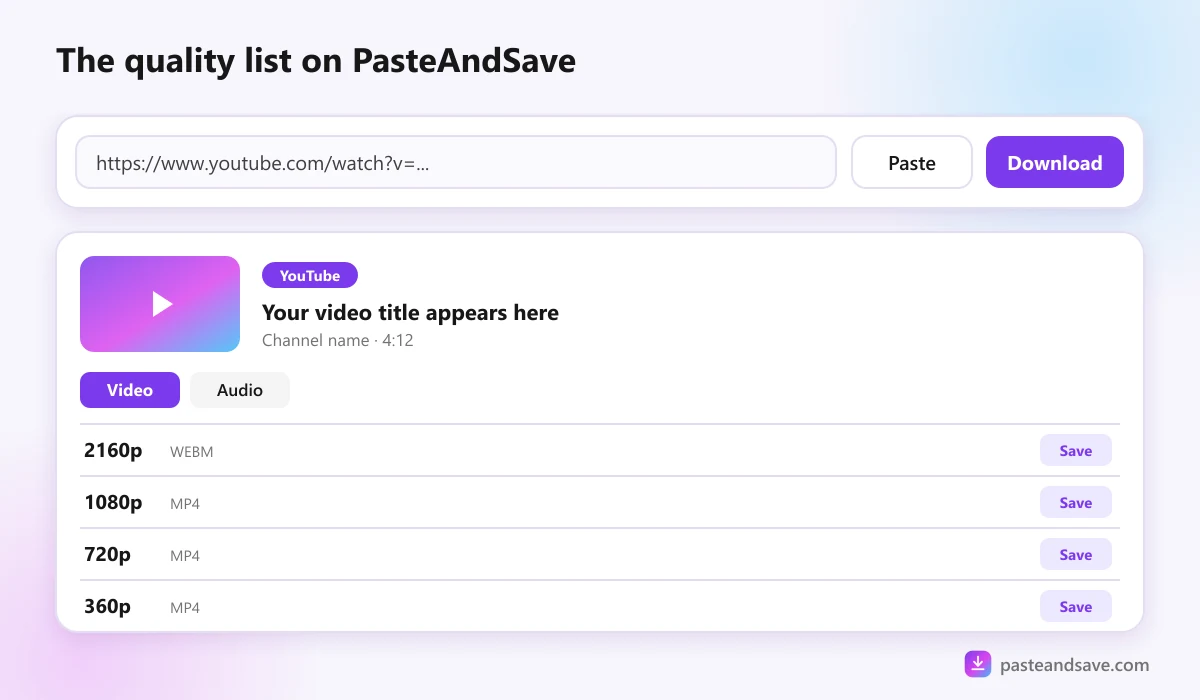
The list shows every size YouTube has for that video. A few rules of thumb:
- 720p for watching on a phone. Sharp enough, and a fraction of the size.
- 1080p for a laptop or TV.
- 2160p (4K) only if you will watch on a big screen or edit the footage.
- WebM or MP4? Both play in modern browsers and on most phones. If you are not sure, MP4 is the safe choice for older TVs and editing apps. The formats lesson explains why.
Why 1080p takes longer than 720p
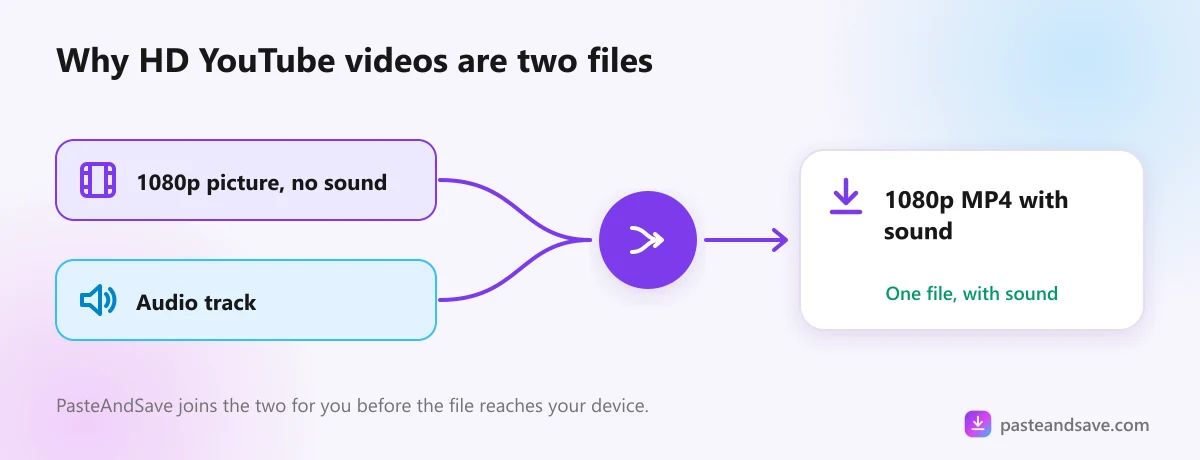
YouTube keeps its HD and 4K versions as picture only, with the sound in a separate file. When you pick one of those, our server fetches both and joins them into a single file with sound. That joining is the progress bar you see before the download starts. A 720p file often has the sound already inside, so it skips that step.
YouTube Shorts
Shorts work exactly like normal videos. Tap Share on the Short, then Copy link, and paste it. Because Shorts are tall, PasteAndSave names their quality by the short side, so a 1080 by 1920 Short is listed as 1080p.
Just the audio
For a song, a podcast or a lecture, skip the video entirely. After pasting the link, open the Audio tab and choose MP3, or M4A to keep YouTube's own sound without converting it. There is also a dedicated YouTube to MP3 page, and the MP3 guide explains which bitrate is worth picking.
A whole playlist
Paste the link of a playlist and you get a list of its videos to choose from, one at a time. The playlist guide shows how to copy the right link.
When a YouTube video won't download
These are the messages you are most likely to see:
- "This one is private or needs a sign in." Private videos, members only videos and age restricted videos all need a logged in account. PasteAndSave never logs in, so these can't be saved here.
- "This site is turning our server away right now." YouTube limits how often one server may ask for videos. Wait a minute and try again. It usually clears up by itself.
- "This video is copy protected." Films and shows you buy or rent on YouTube are encrypted, and getting around that is illegal in many countries.
- "This video was removed or is no longer available." The owner deleted it, or YouTube took it down.
Unlisted videos, the ones you can only find with the link, download normally, because anyone with the link can watch them. For the rest, Why a Video Won't Download lists every message.
Got a link ready? Paste it into the YouTube downloader.
Ready to try it?
Free, no sign up, works on any phone or computer.
Advertisement
Questions people ask
Can I download YouTube videos in 4K?+
Yes, when the creator uploaded the video in 4K. The quality list shows 2160p for those videos. A 4K file is large, often 80 to 150 MB for every minute, so pick it only if you will watch on a big screen or edit the footage.
Why does my downloaded YouTube video have no sound?+
It shouldn't on PasteAndSave. YouTube stores its HD picture and its sound in separate files, and our server joins them before sending you one MP4. If you saved a file some other way and got silence, you most likely got the picture track alone.
How do I download a YouTube Short?+
Tap Share under the Short, then Copy link, and paste it into the YouTube downloader exactly like a normal video. Shorts are tall videos, so they show up as 1080p or 720p, named by their width.
Is downloading YouTube videos allowed?+
YouTube's terms allow downloading only through its own features, such as offline viewing with YouTube Premium, or with permission from the owner. Saving your own uploads, or videos the creator released under Creative Commons, is fine.